.png?width=200&height=87&name=simple-solutions-logo-1%20(1).png)
Once you have logged in, follow the steps below to get started.
Creating a Class:
- At the top right of the page, click the "+Add / Join Class" button.

- Choose "+ Add New Class" and click "Save."

- Type a class name, choose a Start Date, End Date, and click "Save."

Adding a Simple Solutions Book:
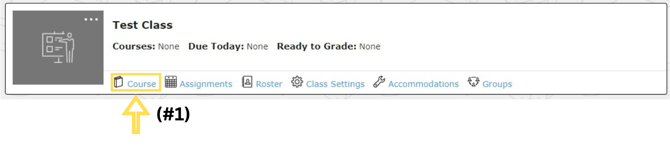
- From your dashboard, click "Course" underneath your newly created class.
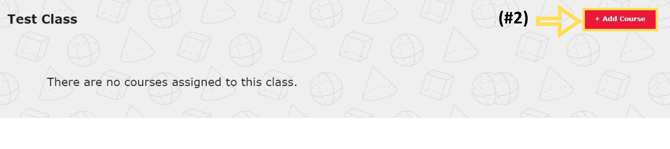
- Click on "+ Add Course."
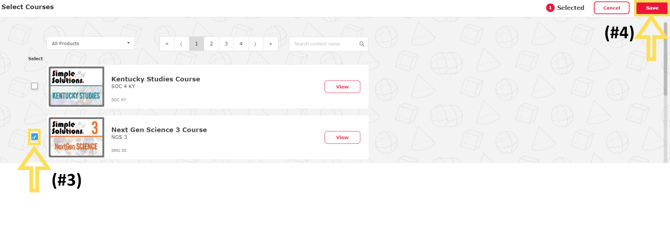
- Click the checkbox on the left-hand side of the book you would like to add to the course.
- Click "Save" at the top right of the screen.
Adding Students:
Option 1: Students can create their own accounts.
- From your dashboard, click "Roster" underneath the newly created class.
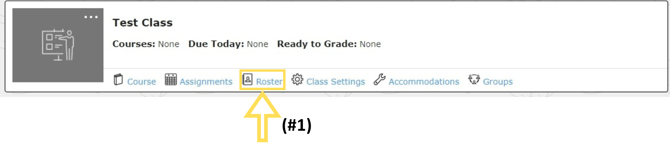
- Here you will find the Student Access Code. Students will need this code to register for an account or to join a class if they already have an account.
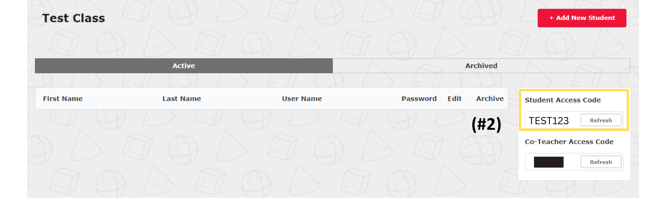
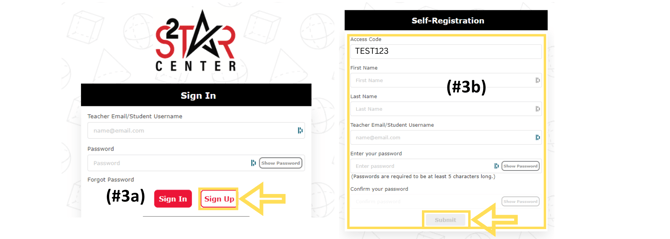
- Students sign up by going to https://digital.simplesolutions.org
- Click the “Sign Up” button.
- Fill out the Self-Registration box: Type the Access Code, First Name, Last Name, Student Username (NOT EMAIL), and create a password. Then click “Submit.”
- Class rosters will populate in the teacher account as students register.
Option 2: Teachers can create accounts for the students.
- From your dashboard, click "Roster" underneath your newly created class.
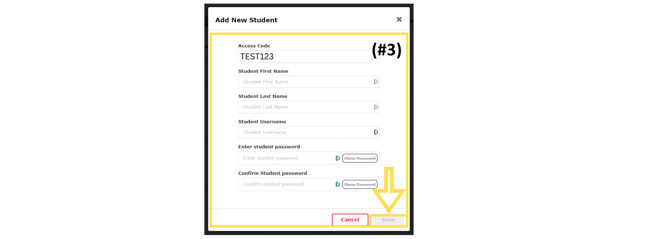
- Click “+ Add New Student” button located at the top right of the page.
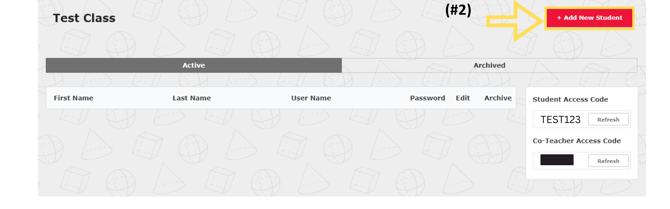
- Click “+ Add New Student” button located at the top right of the page.
For students to join a new class:
Students should only have ONE Simple Solutions Account. Once a student has an account, they can join other classes that use Simple Solutions books. Students will need the Student Access Code for the class they will be joining. Teachers can find that in the “Roster” section of their class.
- Students log into their account.
- At the top left of the screen, click the drop-down menu under the class name and click “+ Join Class.”
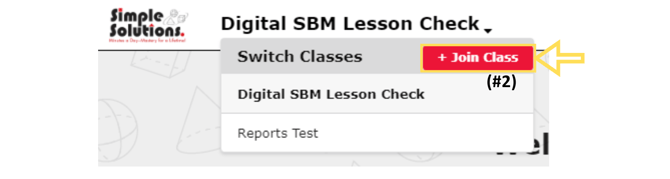
- Type the new Student Access Code in the box of the class you are joining and click “Join.”

- Students can now use the drop-down menu to toggle between the two classes.