.png?width=200&height=87&name=simple-solutions-logo-1%20(1).png)
Google Connect - Self-Registration: 2025-26 School Year
Option 1: Import Class from Google Classroom
- Log into the S²TaR Center.
- Click "+Add/Join Class."

- Choose "Import from Google Classroom."

- Select all classrooms you would like to import from Google Classroom and select "Import."

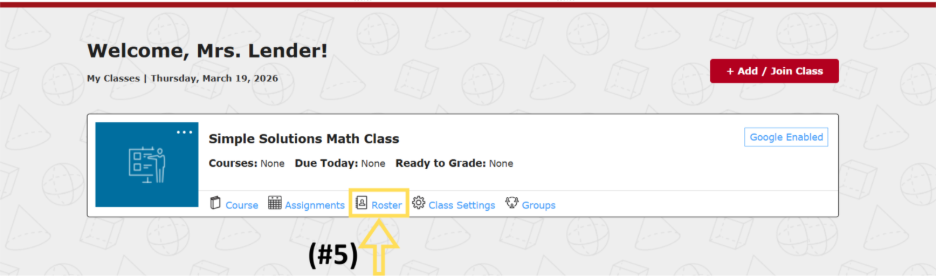
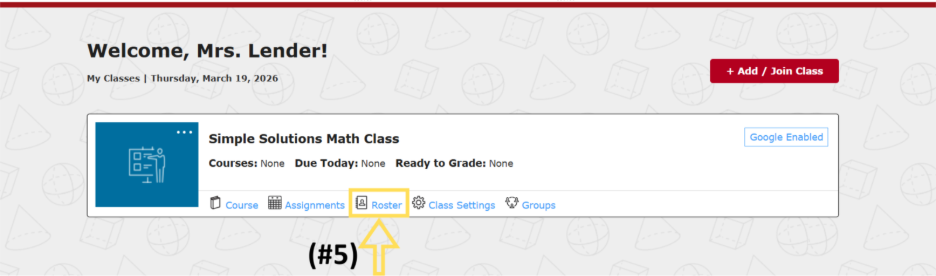
- These classes will now appear on your dashboard. Choose "Roster" to confirm students have been imported from Google Classroom.
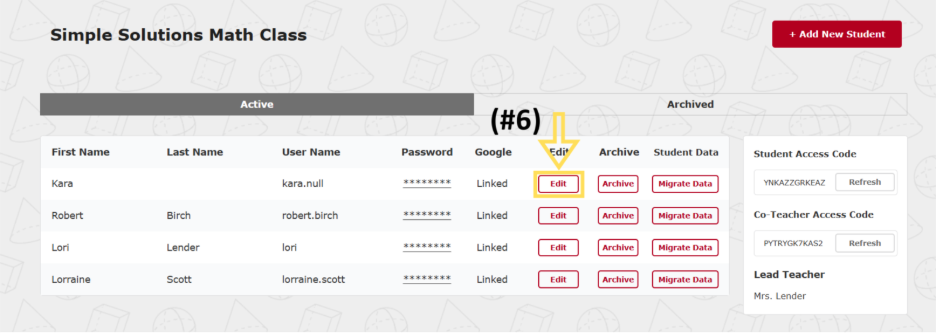
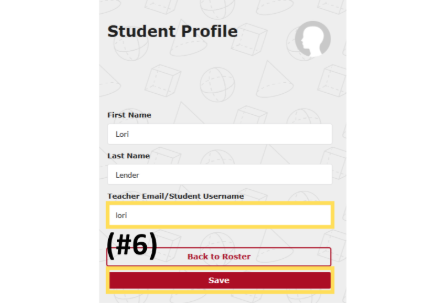
- To edit student usernames, click on "Edit." From here, edit the Teacher Email/Student Username filed. Then select "Save." Note that usernames must be unique in our system.
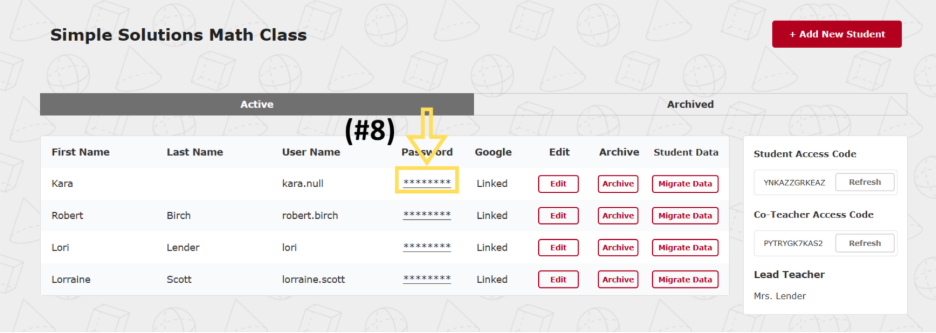
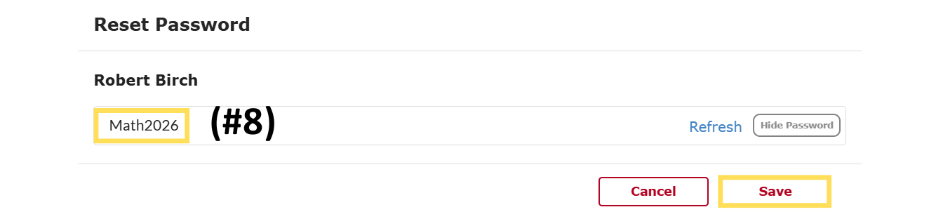
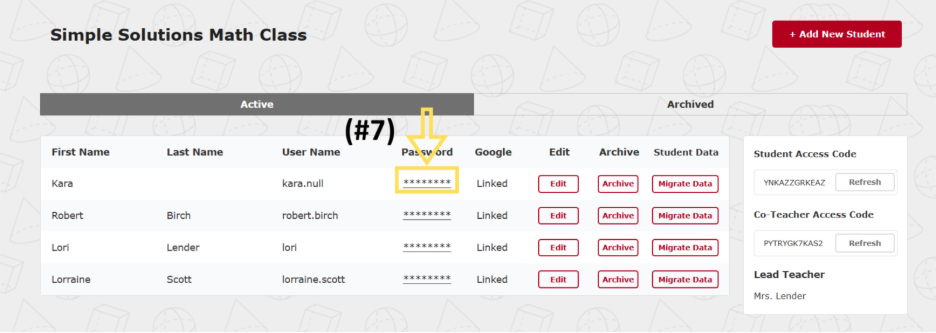
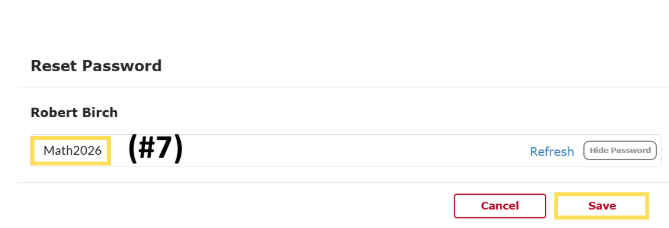
- You must create a password for each student. Click on the password field for each student. Enter a password and select "Save."
Option 2: Import Students only from Google Classroom
- Log into the S²TaR Center.
- Click "+ Add/Join Class" and Create a Class

- From the dashboard, choose "Google Connect."

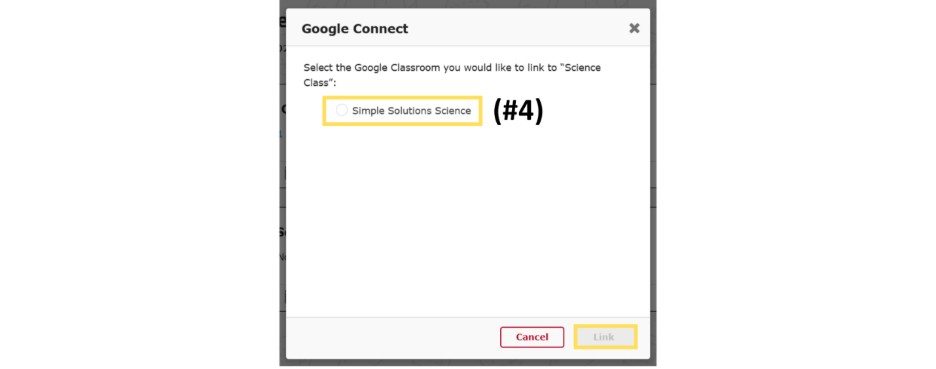
- Select the Google Classroom you want linked to this class and click on "Link."
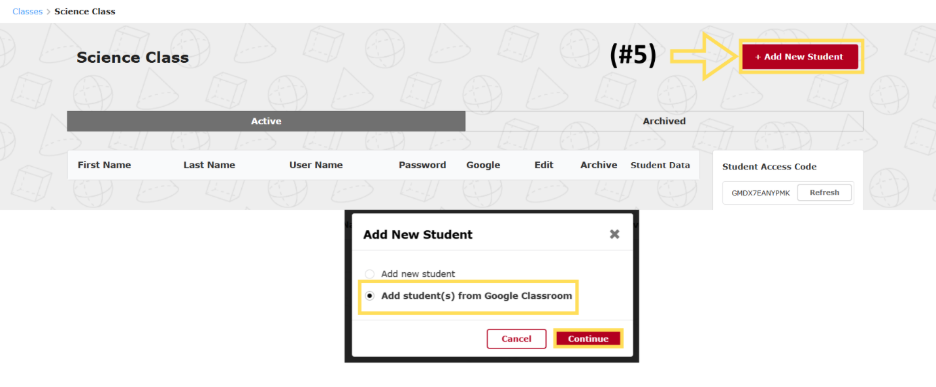
- From the "Roster," click "+ Add New Student." Select "Add student(s) from Google Classroom" and "Continue."
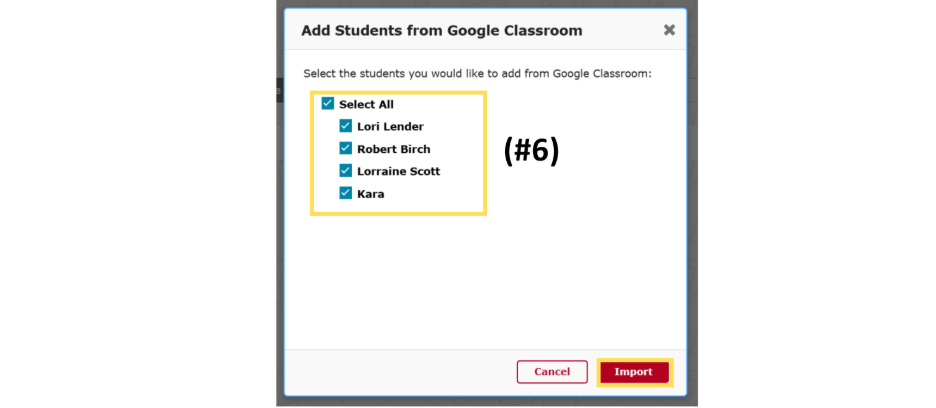
- Select all students and "Import" to add them to the roster.
- To edit student usernames, click on “Edit.” From here, edit the Teacher Email/Student Username filed. Then select “Save.” Note that usernames must be unique in our system.
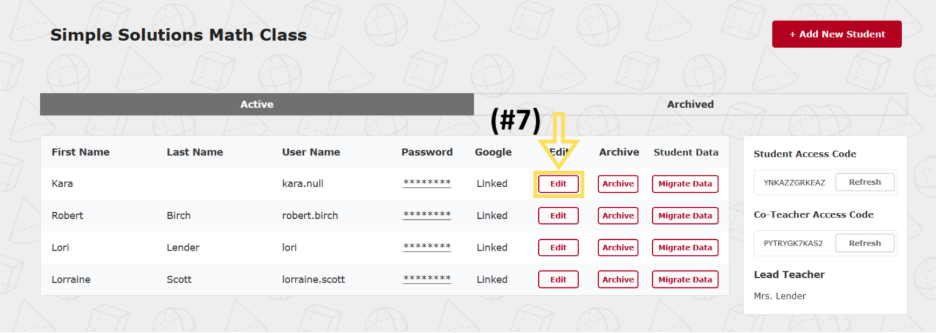
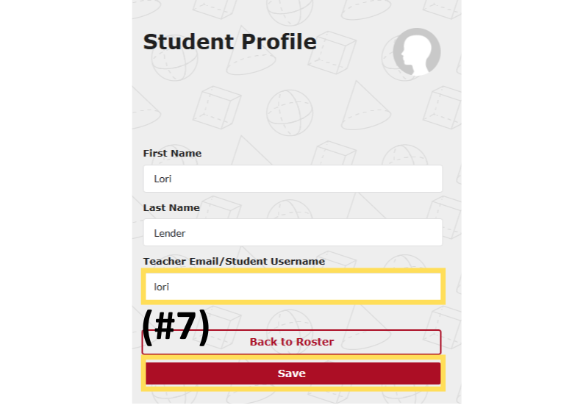
- You must create a password for each student. Click on the password field for each student. Enter a password and select “Save.”